
Overview
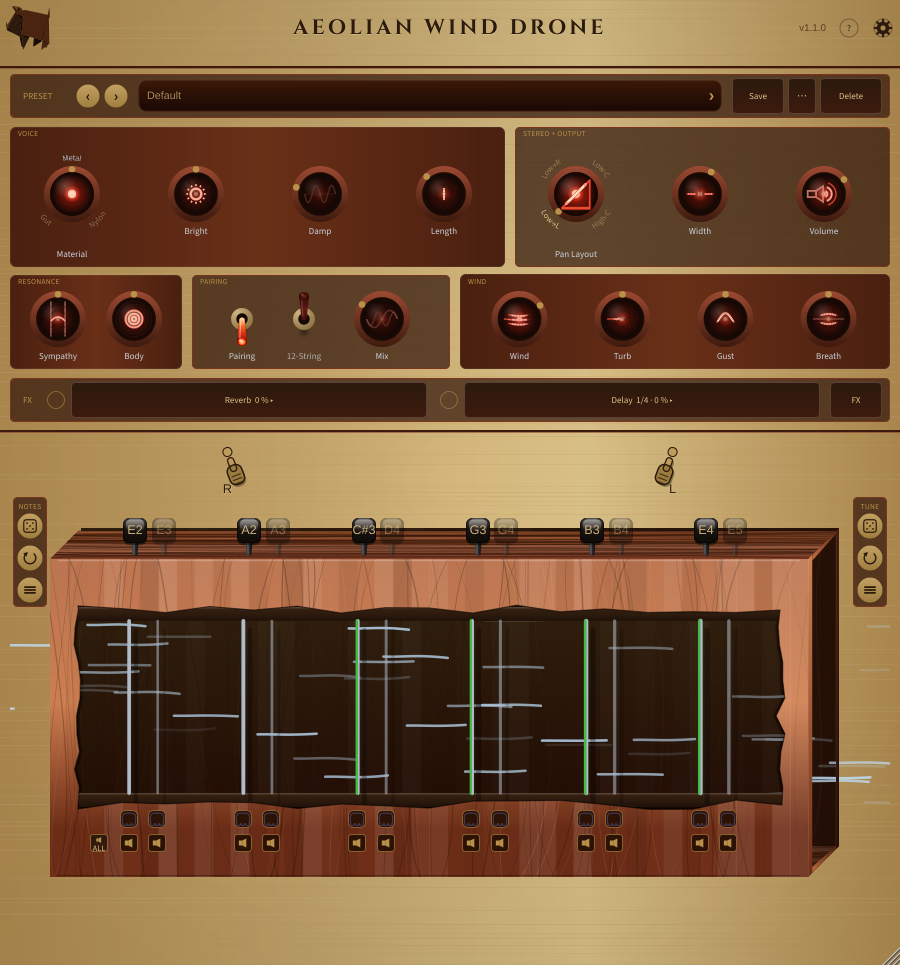
The plugin interface is organized from top to bottom as follows:
- Title bar -- displays the plugin name and version number; the ? button on the right toggles tooltip mode (see Tooltips below), and the cog opens the Settings dialog
- The Settings dialog has three tabs: MIDI (mapping controllers and picking how notes play the harp -- see MIDI and Live Performance below), Display and About. Display has two switches, both on to start with. Animate FX displays lets the reverb and delay pictures in the FX panel move with the sound. Animate wind and strings lets the strings on the harp vibrate and the blue wind drift across it as it plays. Turn either off and that picture holds still -- the harp's strings rest straight, without the glow of a sounding string, and the wind disappears, but everything still follows every knob, it just stops moving -- which is kinder to a slower computer, tidier when you record your screen, and easier on the eye if the motion bothers you. They are settings for you, not part of any preset, and they are remembered next time you open the plugin. Every change in the dialog applies immediately, so there is nothing to save or cancel -- the title-bar ✕ or Escape simply closes it.
- The About tab shows the plugin name, version, and a short summary, followed by a picture of a real twelve-string aeolian harp — a long wooden soundbox set in an open window, which is the instrument this plugin models — and then two rows of buttons: three links that open in your web browser — Documentation (the Daihamu site), Check for updates (the changelog, so you can see whether a newer version has been released and what changed), and Report a bug (opens our report form, where you can report a bug or request a feature) — above a Copy diagnostics button and an Import settings button. The three links open in your default browser; the plugin itself never connects to the internet.
- Report a bug opens the Report a Problem page on our website, where you can file a bug or request a feature in a short form. It needs no account and no sign-in — the report comes straight to us by email. When reporting a bug, click Copy diagnostics first and paste the result into the form's Diagnostics box — it fills in your version, system, host, and audio settings automatically. (If you would rather use GitHub, the public tracker is still linked from the Support page, and you can browse what is already reported there without an account.)
- Copy diagnostics copies a full support snapshot to the clipboard to paste into a support request. The snapshot is plain text (nothing is uploaded) and captures your version and system details, the audio sample rate / block size, the current preset, every control's value, the per-string tuning, and the exact patch state — so a support ticket reproduces precisely what you were hearing.
- Import settings does the reverse: paste a diagnostics snapshot (or a saved preset's contents) that someone shared, and the plugin reproduces that exact patch. It reads only the control values, clamps anything out of range, and ignores everything else — no files are opened and nothing is downloaded. Because importing replaces your current patch, a confirmation prompt appears first; after importing, the preset name clears to show the patch is now modified. If the clipboard doesn't hold a valid patch, a short message says so and your current sound is left untouched.
- Preset controls -- browse, save, and delete presets
- Voice and Stereo / Output row -- the Voice panel on the left (the Bright, Damp, Length, Gauge tone shapers, then the Material selector at its right end) and the Stereo / Output panel on the right (Width, Volume, then the Pan Layout selector at its right end)
- Resonance, Pairing and Wind row -- the Resonance panel (Sympathy, Body), the Pairing panel (Pairing toggle, 12-string toggle, and the Mix blend they gate), and the Wind panel (Wind, Turb, Gust, Breath knobs) side by side
- FX strip -- a slim row carrying the audio input and the effects: under IN at the left, a switch, a value and an open button for audio coming in from your DAW; under FX, the same three for the reverb and the delay, plus a reorder button that opens the effect chain
- Harp canvas -- visual centrepiece showing the instrument; strings vibrate in real time and serve as the primary tuning interface
- Notes and Tune mini-panels -- small framed brass-button panels in the open space to the left (Notes) and right (Tune) of the harp: randomise, reset, or set-all string notes (Notes) and randomise/reset fine-tuning in cents (Tune)
The plugin window is resizable: drag the bottom-right corner (or resize the host window) to scale the whole interface between 75% and 300% of its default size -- useful on 4K/Retina displays. The aspect ratio stays fixed so the layout never distorts, and the chosen size is remembered the next time you open the editor (it applies to all instances, independent of presets).