
FX -- Reverb and Delay

The plugin has its own reverb and delay, so it can stand on its own without anything after it in the chain. Both start switched off, so a patch you have already saved sounds exactly as it did until you reach for them. Each is ready with a modest amount mixed in, so switching one on is heard straight away.
They live in two places. The FX strip is the slim row just below the Wind panel, and it is what you see all the time. It reads left to right in the order the sound travels: everything under IN at the far left is the audio you feed in from your DAW (see Audio Input below), and everything under FX, to the right of the thin dividing line, is the effect chain the sound then passes through. The input and each effect have the same three things side by side:
- A switch -- the same red glass lever as the Pairing switch. Lever down and glowing means it is running; lever up and dark means it is not. Click it to switch the input or that effect in or out where it sits, without opening anything.
- A value that names what it is currently set to -- the input's level and where it is sent, how much reverb is blended in, and for the delay, its timing and how much of it you hear. A small meter scale runs along the bottom of the value -- marked in decibels for the input, with a longer mark at 0 dB, and in tenths for the effects -- and a small bakelite pointer, like the ridge on an old console knob, stands on it to show how far up the input's level or the effect's mix is turned. While the input or effect is switched on, the value lights up like an old lamp-lit meter and the line on top of the pointer glows; switched off, the light goes out but the scale and pointer still show the setting. Drag the value left or right to turn the input's level, or that effect's mix, down or up without opening anything. With the value selected, the arrow keys nudge it, and Home / End jump to the ends.
- A small faders button that opens its own panel, with every control for the input or that effect.
- The reorder button at the right of the strip (two blocks beside up/down arrows) opens the FX chain instead -- the picture of how the effects are wired together, where you can change their order.
- The strip reads in the order the sound passes through the effects, so if you reorder the chain, the strip reorders with it.
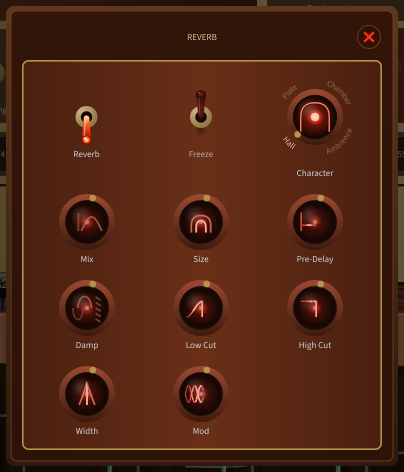
Each effect's panel opens over the instrument and holds all of its controls. Escape, the red ✕, or a click outside the panel closes it.
Across the top of each panel is a display -- a small dark window where the effect draws a picture of what it is doing to your sound, with time running left to right along the bottom. Tab skips over it, but you can drag the picture itself to shape the effect -- grab the echoes, the tail's end, the filter edges or the cloud's height and move them, and the rotaries below follow. Over anything you can grab, the pointer turns into a two-way arrow showing which way it drags, and while you drag, a small label names the setting and shows its value. On the delay, the first echo sets the time -- drag it past the right-hand edge and it waits there with a small arrow while the time keeps growing, and the picture rescales smoothly when you let go -- and the top of the second echo sets Feedback; at zero Feedback, grab the centre line halfway between the lone echo and the right-hand edge to bring the repeats back. On the reverb, the start of the glow sets the Pre-Delay with a long, fine drag, so small changes are easy. Double-click any handle to reset it to its default; hold Shift for fine adjustment. It dims while the effect is switched off, and with Help mode on, hovering it explains what the picture shows.
Reverb -- the space around the drone.
| Control | What it does |
|---|---|
| Reverb | Switches the reverb in or out (the same switch as the one on the strip) |
| Freeze | Holds the tail where it is: the reverb stops taking new sound in and rings on until you release it. It takes hold a moment after you switch it on -- the sound already on its way into the tail is allowed to arrive first, so the longer the Pre-Delay, the longer the wait -- and it lets go smoothly when you release it |
| Character | The kind of space: Hall (large and slow), Plate (dense and bright), Chamber (tighter and woodier), Ambience (a short room that just sets the drone back). The dial names them around its top, shortening the two long ones to CHMBR and AMB. Click a name to choose it, or click the dial for the full list |
| Mix | How much of the tail is blended in with the dry drone. Starts at 30 %, so switching the effect on is heard straight away |
| Size | How large the space is, and so how long its tail runs |
| Pre-Delay | The gap between the sound and the start of its tail. A longer gap separates the drone from its own reverb -- the single most useful control here for keeping a long tail from swallowing the instrument. Changing it bends the pitch of the tail for a moment, like a tape machine, so a big move takes about half a second to settle |
| Damp | How fast the tail's high frequencies are absorbed; higher is softer and woollier |
| Low Cut | Clears the bottom out of the tail so it does not muddy the drone's own low strings |
| High Cut | How much top end the tail keeps. Bring it down if a bright tail starts to sound harsh |
| Width | How far the tail spreads across the stereo field; at zero it stays in the centre with the drone |
| Mod | Gently detunes the tail. It is not at zero by default, on purpose: a long reverb on a sustained drone rings metallic without it |
Reading the reverb's display. The picture is the tail of a single sound. The thin upright line at 0 is the sound itself, and the empty stretch after it is the Pre-Delay. The small marks near the start are the first reflections off the walls -- soft and blended on Hall and Plate, sharp and separate on Chamber and Ambience. Then the glowing shape swells and tapers to a point: where that point meets the line through the middle, the tail has faded to silence, so a bigger Size or a longer-ringing Character stretches it out, and the time scale along the bottom changes to fit. How tall the shape stands above and below that middle line is the Width -- at zero it shrinks to a thin line. Damp turns the glow from white-hot to red sooner, High Cut takes the white off its brightest point, and Low Cut opens a gap down its middle. Mod sets a gentle ripple running along its top edge, Mix decides how solid it looks next to the line at 0, and the faint box behind it grows with Size. With Freeze on, the shape runs flat to the right-hand edge with a pause mark, and a bar across the start shows that no new sound is getting in.
Watching the reverb light up. While sound is playing through the reverb, the shape glows with it. With nothing coming out of the reverb the shape sits dimmed; when sound goes in, it lights up after the Pre-Delay gap, flashes through the first reflections (brighter on Chamber and Ambience, which have more of them), then drifts along the tail and fades out just where the reverb itself goes quiet -- so a gust of wind is a glow that travels across the picture, and a steady drone is a steady glow that swells and settles with the wind. The top half lights from the left channel and the bottom half from the right. The glow only ever shows what the reverb is really giving back: with Mix at zero, or the reverb off, it stays dark. With Freeze on, whatever was glowing stays lit for as long as the freeze lasts, and new sound only flickers at the closed bar at the start; switch Freeze off and the held glow fades away along the tail. The glow moves only while Animate FX displays is on (Settings, Display tab).
Delay -- the repeats.
| Control | What it does |
|---|---|
| Delay | Switches the delay in or out (the same switch as the one on the strip) |
| Sync | Locks the repeats to your host's tempo. With Sync on, Division sets the note value and Time is greyed out; with it off, the pair swaps |
| Division | The note value the repeats follow, from a 32nd up to a whole note, including triplets and dotted values. The dial shows the current one above the knob, moving round with the pointer. Click the dial for the full list to choose from. Changing it slides the repeats to the new spacing like a tape machine: they bend in pitch on the way and a big change takes a few seconds to arrive |
| Mix | How much of the repeats is blended in with the dry drone. Starts at 35 %, so switching the effect on is heard straight away |
| Time | The gap between repeats in milliseconds, when Sync is off. Moving it bends the pitch of the repeats like speeding up or slowing down a tape -- never more than an octave down or a fifth up, and never backwards -- so a big move (say 0.5 s to 2 s) takes a few seconds to arrive |
| Feedback | How much of each repeat is fed back in, and so how many you hear. At maximum the line freezes and holds what is in it; the hold fades in over a fraction of a second rather than cutting in |
| Ping-Pong | How far each repeat is thrown to the opposite side; at zero both channels run straight |
| Offset | Nudges the two channels' repeats apart in time, in either direction; at zero they land together |
| Duck | How far the repeats drop out of the way while the drone is loud, springing back as it falls away |
| Damp | How much top end each repeat loses on its way round, so the echoes darken as they fade |
| Low Cut | Clears the bottom out of the repeats so they stay out of the drone's way |
| Mod | Tape-style wow and flutter on the delay line, so the repeats drift rather than sit still |
Changing the delay's timing while it is sounding bends the pitch of what is already in the line, the way a tape delay does. That is deliberate, not a fault -- if you want a clean change, drop the Mix first.
The delay's display is an echo timeline. The pale mark at 0 is the dry sound, and each bar after it is one repeat, standing exactly where you will hear it and as tall as it will sound -- the bottom of the window is 60 dB down, where a repeat has faded to nothing. Every delay control changes the picture:
- Time, or Sync and Division, space the bars out. With Sync on, faint lines mark the note value and each bar of music at your host's tempo, which is named in the corner; at slow tempos a long division is halved until it fits, just as the delay itself halves it, and the corner shows ÷2 (or ÷4).
- Feedback sets how gently the bars shrink. At maximum they stop shrinking and run on off the right-hand edge, marked with ∞.
- Bars above the centre line are the left side, bars below it the right. Ping-Pong makes them take turns; Offset slides the right-hand ones along. With both turned up, each repeat splits into a small cluster, because echoes that have crossed sides a different number of times arrive at slightly different moments.
- Damp shades off the top of each repeat and Low Cut the bottom, a little more every time round, so you can see the echoes darken and thin.
- Duck outlines the part of each repeat that steps aside while the drone is loud.
- Mod makes the bars sway gently, at the speed the tape wobbles.
- Mix brightens the repeats and dims the dry mark, and switching the delay off dims the whole picture.
While sound is going through the delay, the timeline comes alive. Inside each bar a bright shape traces the sound itself as it goes round: whatever goes in now shows up in the first bar one repeat later, then in the second bar one repeat after that, and so on, each time smaller -- and, if Damp is up, duller. A gust of wind swells the first bar, then the next, then the next, bouncing along the timeline exactly as you hear it. With Ping-Pong up you can watch a sound that only came in on one side take turns on both; at full Feedback the sound held in the loop keeps circling at the same height. The slim bright strip just past the right-hand edge shows how loud the echoes really are at that moment. When the sound goes quiet, or you stop playback or switch the delay off, the moving shapes fade away and the still bars remain. They only move while the panel is open, and Animate FX displays in Settings turns them off altogether.
Every one of these is a normal automatable parameter and appears in your host's parameter list, and every control in the panel takes the keyboard exactly as the main panel's do (see Keyboard Control below).
The FX chain
The FX button on the strip opens the FX chain -- the sound's path through the effects, drawn left to right from IN to OUT, with one block per effect and an arrow between them.
- Each block has a lamp, so you can switch an effect in or out from here too: a lit brass disc means it is running, an empty ring means it is not.
- Click a block to open that effect's own controls.
- Drag a block left or right to change the order the effects run in, or use the ‹ and › buttons on the block if you would rather not drag. The blocks either side move out of the way as you drag, so you can see where it will land before you let go.
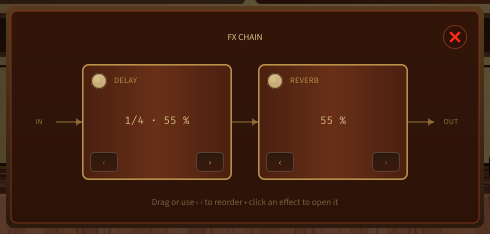
The order matters, and both ways round are useful. Delay before Reverb -- the way it starts -- sends each repeat into the room, so the echoes stay separate and articulate. Reverb before Delay echoes the whole wash instead, which smears it into something larger and less defined. On a slow drone the first is usually the clearer choice; the second is worth reaching for when you want the tail itself to repeat.
Reordering does not cut anything off: whatever the reverb and delay are already holding keeps ringing through the new path.
The order is saved with your patch and is automatable like everything else -- it appears in your host as Delay Chain Slot and Reverb Chain Slot, each naming that effect's place in the chain.